






Test Automation for Windows Native Applications: Best Practices and Tools
Automating tests for Windows native applications presents unique challenges compared to the relative ease of creating automated tests for web applications and web pages. Assuming we are not working with something sloppily written and/or ancient, “driving” web applications and web pages using elements like xPaths and IDs is often a straightforward process. Terminal applications are generally easy as well, given their basic nature.
Windows native applications, on the other hand, can be tricky, as we need to take a few extra steps to track down unique identifiers for the objects that we want to interact with and control. Sometimes, objects will use the same identifiers, or perhaps certain elements will just outright refuse to work because the “Test Automation Gods” don’t want to make things too easy for you, and in those instances, you can still automate, but it will take a bit more effort.
Tools and Technologies for Windows Test Automation
To locate and leverage elements in native applications, we’ll need to download a few free Microsoft utilities:
- WinAppDriver – This leverages the Selenium WebDriver protocol and allows us “web element-like” access to elements in native applications.
- WinAppDriver UI Recorder – This tool will help you find xPaths, in the event that other elements aren’t available.
- Windows Inspect – Available in the Windows SDK, this handy app helps you find elements to interact with objects in native applications. There are other utilities out there that do the same thing but we prefer the official Windows Inspect for its simple-but-clean interface and stability.
- Bob – Just kidding; however, the Microsoft Bob story is worth a read if you missed that whole debacle.
Best Practices for Effective Test Automation
Install the WinAppDriver first, and in “Windows Settings > Update & Security > For Developers:” select the option to enable Developer mode. Next, install the Windows SDK so you can use the Inspect utility to investigate applications for their elements.
Every object in a native application has a variety of elements (or “locator types”) associated with it, and we are especially interested in a handful of them. We want to track down Name and AutomationID, and if we can’t use either one of those, then we may need to involve LocalizedControlType and wrangle with the xPath. Although we have never used them in our test automation solution, we’ve also heard of people identifying and controlling specific native objects with RuntimeID and ClassName. In the event it exists and works, the Name field is our favorite choice because it helps make the test script more readable.
Let’s use Inspect to find some controllable elements in a basic calculator application:
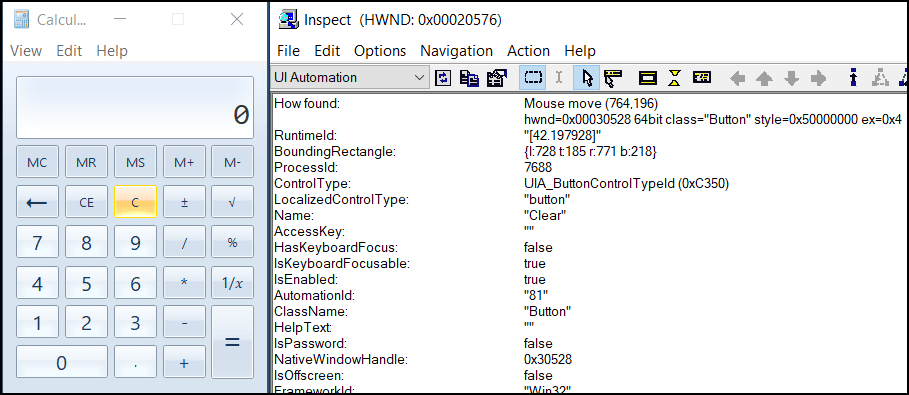
We’ve chosen “UI Automation” in the dropdown box in the Inspect utility, and using the mouse, we select the clear button in the calculator application. Information for the button element is then populated in Inspect. You will receive a bunch of unwanted details. We have a Name, AutomationID, and LocalizedControlType, and so the only fields we are truly interested in are all there. What if they weren’t, or if there was duplicate information? In that case, we can create a relative xPath or find an absolute xPath; the latter can be made easier using WinAppDriver UI Recorder.
Creating a relative xPath can be as simple as joining elements together, and so we can combine LocalizedControlType and AutomationID to create: “//*[@LocalizedControlType=’button’ and @AutomationID=’81’]”.
Let’s use the handy WinAppDriver UI Recorder to get the absolute xPath:
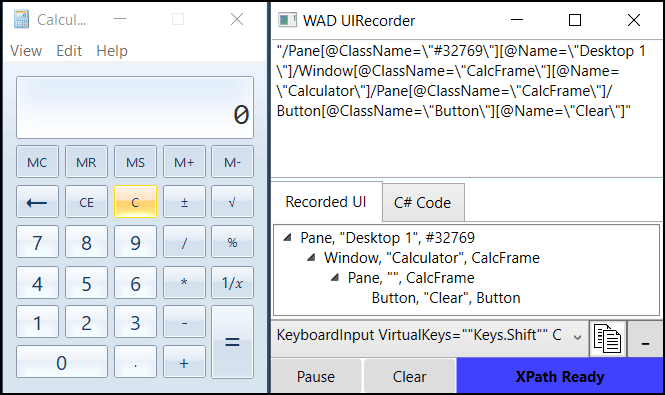
We click the Record in the Recorder utility, select the clear button in our calculator again, and this results in the ugly-but-useful absolute xPath being populated in the top panel of the UI Recorder. The full absolute xPath is unwieldy and makes your scripts less readable, but it may prove to be a necessary evil if you can’t use Name or AutomationID.
In the rare event you come across a weird element that you just can’t find a way to control, like some oddball popup dialog box in an old application or an obscure object buried in the deep recesses of a datagrid, you could try interacting with a nearby element and use keyboard shortcuts to navigate over to the trouble object or, assuming your test automation solution allows, you can also try accessing it via cursor position and/or images as a last resort. These situations should be uncommon, though, and we think you will find that most objects in Windows native applications have some element that you can leverage for test automation.
Are you interested in learning more about implementing test automation in your warehouse management system? Check out our success stories, more of our blogs, or learn more about the Cycle platform.
This post was written by:
James Prior
Sales Engineer

